AWS / Kubernetes
Scaling EKS to zero starts with the cluster
Three EC2 workers can belong to one development cluster. A dashboard that gives each worker its own stop button makes the wrong operation look easy.
The three rows belong together
An EC2 inventory lists machines. Kubernetes runs applications across those machines, and a managed node group controls their capacity. Stopping a worker from an EC2 row ignores the pods running there, their disruption budgets and the group that owns the instance.
Auto Scaling can treat a stopped instance as unhealthy and replace it. The group's desired capacity still says it needs workers. AWS describes these health checks. A stop button can therefore cause disruption without keeping the cluster at zero.
SnoozeDB groups EKS workers under their cluster and node groups, and disables individual EC2 scheduling for them. That gives the person making the decision the right scope: the applications and worker capacity of one cluster.
Keep the cluster visible after the workers disappear
EC2 tags help identify which instances belong to a cluster. They cannot describe a cluster after its last worker has gone. Discovery needs to query EKS itself.
SnoozeDB reads the cluster and managed node groups through the AWS EKS API. A cluster with zero workers stays in the inventory, so there is still a cluster row to inspect and wake. This works for clusters provisioned directly in the customer's AWS account, without moving them to a BYOC platform.
The account's CloudFormation template grants AWS access to all clusters, including ones created later. A sync adds each new cluster to To triage. The user chooses Manage or Protect in SnoozeDB, just as for RDS and EC2. Further syncs keep that choice; AWS access does not automatically enable cluster operations.
A successful regional scan updates that inventory. A failed scan keeps the previous result. Zero matched EC2 instances and a completed sleep are different observations; the dashboard tracks the cluster operation separately.
The process that wakes the cluster must stay running
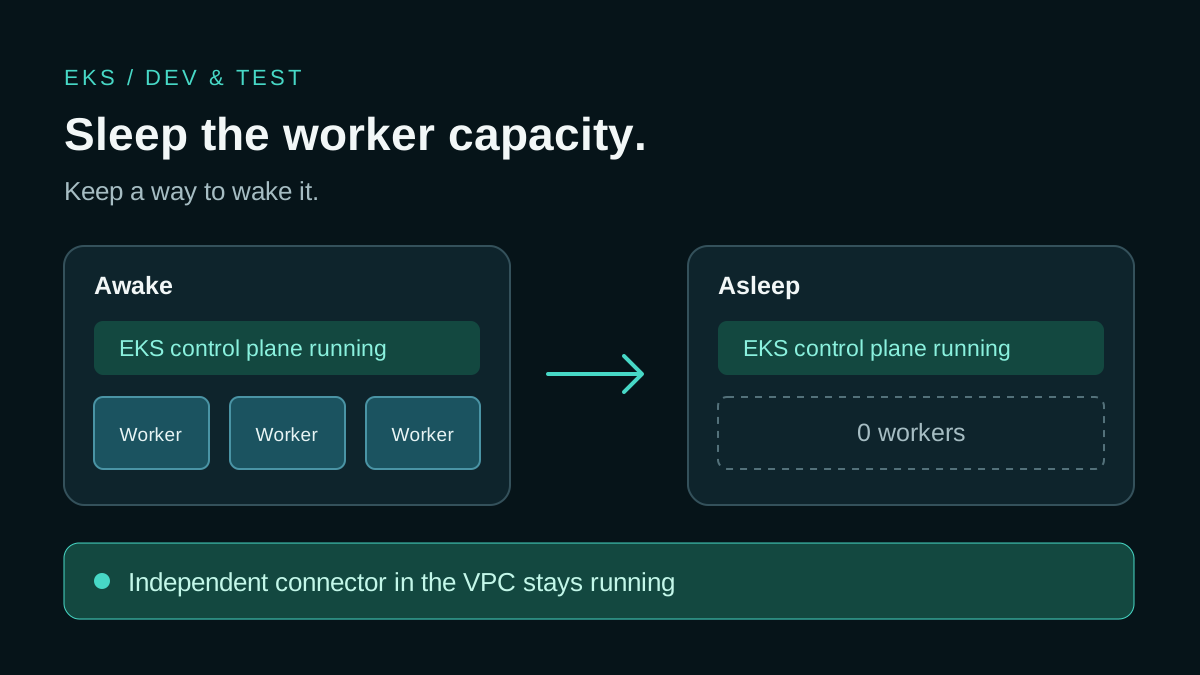
A connector running on a worker would disappear with that worker. We use a connector in the client VPC, on an independent VM or an ECS Fargate task. It reaches the Kubernetes API locally and polls SnoozeDB over outbound HTTPS.
That placement also works with a private Kubernetes endpoint, provided routing, DNS and the cluster security group allow access. The API does not need to be opened to the internet for this connector. AWS documents private endpoint access.
The connector has Kubernetes permissions for the operations it performs and a revocable credential tied to its cluster. CloudFormation provides the account's AWS API permissions. Kubernetes access for the connector is a separate part of the sleep pilot, and operations require the user's Manage choice.
Save the running configuration before changing it
For a managed node group, AWS allows minimum and desired capacity to reach zero while maximum capacity stays positive. Changing these values is only one step in putting an application environment to sleep. AWS also warns against changing desired capacity while Cluster Autoscaler is controlling it. See the node group capacity reference.
SnoozeDB first saves each node group's capacity, Deployment replica counts, CronJob suspension and node cordon state. The connector pauses CronJobs and a recognized Cluster Autoscaler, then cordons and drains the nodes. Kubernetes eviction respects PodDisruptionBudgets. If a budget blocks drainage, sleep stops rather than forcing pods out.
After drainage, the connector scales application Deployments to zero, reduces each managed node group to zero and waits for the workers to disappear. Wake restores the saved capacity and waits for Ready nodes before restoring Deployments. It checks their available replicas, then restores CronJobs and the autoscaler.
Those checks depend on the application's readiness probes. A successful wake does not prove that checkout, login or another business workflow works. The team still needs an application check during its first pilot.
Start with a dedicated dev/test cluster
This implementation is a managed-node-group pilot. An owner or admin requests sleep and wake, with MFA when the workspace requires it. Begin with a dedicated dev/test environment that can tolerate an interruption; sleep and wake are manual cluster actions in this version.
EKS follows the product's exclusion rules. Production environment tags and custom tag exclusions from Settings block operations on the cluster or its node groups. An untagged cluster can be managed if it meets the technical requirements. No EKS opt-in tag is required.
The pilot excludes EKS Auto Mode, Fargate profiles, Karpenter, HPA, GitOps or event autoscaling controllers, active StatefulSets and Jobs, and application DaemonSets. Workloads with PVCs or local volumes are also outside the scope. They need recovery and data handling that this pilot does not provide.
A failed operation keeps the saved configuration for Wake / recover cluster. A revoked role, changed protection or capacity drift can block recovery too. Before the first sleep, agree who can restore the cluster manually and how they will retrieve that configuration if necessary.
Zero workers still leaves a bill
The EKS control plane keeps running during sleep, so its cluster charge remains. Retained storage, network resources and the independent connector may also continue to cost money. Use the EKS pricing details and your billing data to separate worker usage from the costs that remain.
Savings Plans commitments and Reserved Instance charges remain in force when workers disappear. Reducing worker usage does not cancel those purchases.
SnoozeDB's pilot does not yet attribute EKS savings in the dashboard. Measure a complete sleep and wake on your cluster before estimating the benefit, including the time the team needs to wait for applications to return.
The EKS setup and recovery guide covers discovery, connector permissions and the checks to run on a real cluster. Begin with an environment that can tolerate an interruption and an administrator who can recover it.